What is HTML?
HTML, which stands for HyperText Markup Language, is the fundamental technology used to create web pages. It serves as the backbone of web content, enabling browsers to display text, images, and multimedia elements on a webpage. Originally developed in the early 1990s, HTML has undergone several iterations, evolving to meet the growing demands of web technologies.
HTML isn't a programming language in the traditional sense but a markup language. This means it's used to 'mark up' or specify the tags that define the structure and layout of web content. For instance, when you need to format text as headings, paragraphs, or lists, or insert links, images, or interactive forms, HTML provides the tags necessary.
Why this matters: HTML is the first layer of web development, giving your content structure. Understanding HTML is akin to learning the blueprinting necessary for an architect. It's the foundation upon which all other web technologies, like CSS for styling and JavaScript for interactivity, are built.
HTML Document Structure
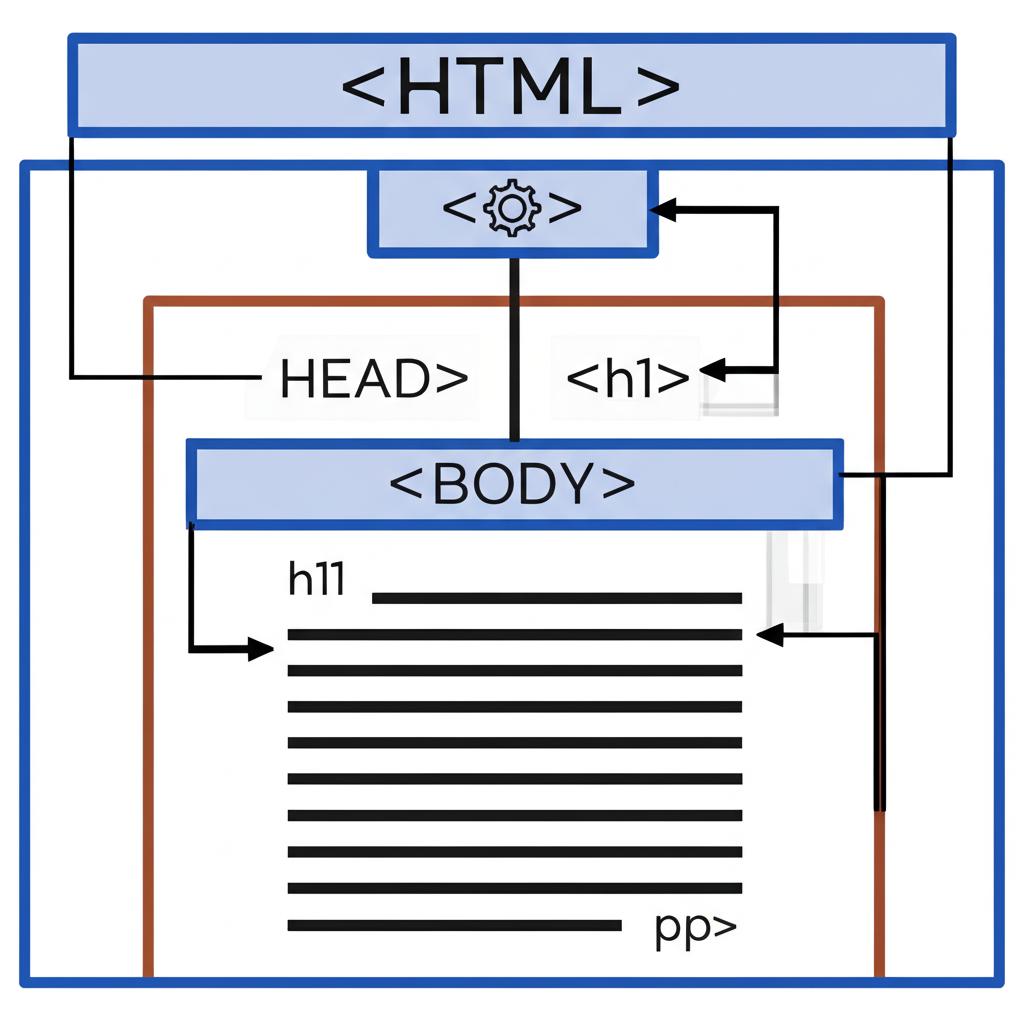
Every HTML document has a standard structure that allows web browsers to interpret and display the content appropriately. Let's break down the core components:
<!DOCTYPE html>: Declares the type of document and the version of HTML being used. The<!DOCTYPE>declaration is essential as it tells the browser how to render the page. Failing to declare this can result in the browser using default or older modes, thus potentially misinterpreting the code.<html>: The root element of an HTML page. It encapsulates all other elements within a web page.
Here's a simple example of an HTML document structure:
<!DOCTYPE html>
<html>
  <head>
    <title>Page Title</title>
  </head>
  <body>
    <h1>Hello, World!</h1>
    <p>This is a paragraph.</p>
  </body>
</html>
Head and Body Sections
Within the HTML structure, there are two primary sections: the <head> and the <body>.
The <head> Section
The <head> element contains information about the document that isn't displayed directly on the web page. This includes:
- Metadata: Descriptive information about the page, such as charset settings and author details.
- Title: The text that appears in the browser's title bar or tab.
- Links to CSS: Stylesheets that define the look and feel of your page.
- Scripts: Can include JavaScript to add interactive elements.
The <body> Section
The <body> element contains all the content that will be displayed on the web page, such as text, images, tables, and lists.
Example:
<body>
  <h1>Main Heading</h1>
  <p>This is a paragraph in the body section.</p>
  <img src="image.jpg" alt="Sample Image">
</body>
Understanding the purpose of the <head> and <body> sections is crucial for organizing and prioritizing web content.
Elements and Tags
HTML is composed of a series of elements, formed by tags and the content they enclose. Each HTML element is defined by a start tag and an end tag, with the content in between.
Example: The <p> tag for paragraphs:
<p>This is a paragraph.</p>
Tags: Tags are used to create elements. They appear within angle brackets and most come in pairs, with an opening and a closing tag, e.g., <b> and </b>.
Tags can contain attributes, which provide additional information about the element. For instance, the <a> tag can use the href attribute to define a hyperlink destination:
<a href="https://www.example.com">Visit Example</a>
Nesting Elements
One of the powerful features of HTML is the ability to nest elements within other elements. This nesting creates a hierarchical structure that is crucial for defining web page layout and style.
Example: Nesting lists:
<ul>
  <li>Item 1</li>
  <li>Item 2
    <ul>
      <li>Subitem 1</li>
    </ul>
  </li>
</ul>
This hierarchy allows for elements to inherit styles and behaviors, ensuring uniformity and control over the page layout.
Common misconception: Incorrectly nesting elements, which may cause web pages to not render as expected.
Comments in HTML
HTML comments allow developers to include notes or explanations within the code that are not visible in the browser. Comments are a critical part of code management and collaboration.
How to write a comment:
<!-- This is a comment. It will not be displayed on the web page. -->
Comments are often used to explain code, mark sections, or exclude code from execution during debugging stages.
Self-Closing Tags
Certain HTML tags do not require an ending tag. These are known as self-closing tags or void elements. They are useful for elements that do not have content or children, such as images or line breaks.
Examples:
<br>: Inserts a single line break.<img>: Used for embedding images, requiringsrcand oftenaltattributes.
Case Sensitivity
HTML is not case-sensitive. This means tags can be written in upper or lowercase. However, the standard practice is to write HTML tags in lowercase to maintain consistency and readability across different documents and teams.
Best practice: Always use lowercase for tags and attributes to ensure compatibility and maintain code clarity.
Practical Applications
With the foundational understanding of HTML elements and structures, let's create a basic HTML page example. This exercise demonstrates multiple key concepts, including document structure, tags, attributes, self-closing elements, and comments.
<!DOCTYPE html>
<html>
  <head>
    <meta charset="UTF-8">
    <title>My First HTML Page</title>
    <!-- Link to external CSS or JavaScript can be added here -->
  </head>
  <body>
    <h1>Welcome to My Website</h1>
    <p>This is an example of a simple HTML document.</p>
    <img src="https://via.placeholder.com/150" alt="Placeholder Image">
    <br>
    <a href="https://www.learnwebdevelopment.org">Learn More</a>
  </body>
</html>
Troubleshooting Common HTML Issues
Working with HTML can sometimes lead to unexpected issues. Here are some troubleshooting tips for common problems:
- Missing Closing Tags: Ensure all elements have corresponding closing tags to prevent cascading HTML or CSS styles.
- Improper Nesting: Verify the correct order and hierarchy of nested elements to avoid structural anomalies.
- Improper DOCTYPE: Always declare the correct
<!DOCTYPE>to ensure compatibility with HTML5 standards. - Typographical Errors: Double-check tags and attribute names for spelling errors, especially in case-sensitive environments like CSS and JavaScript.